Privacy Mask is now available in the Chrome Web Store. It is a Chrome extension from Paperwork for masking sensitive work text locally before it goes into AI chat.
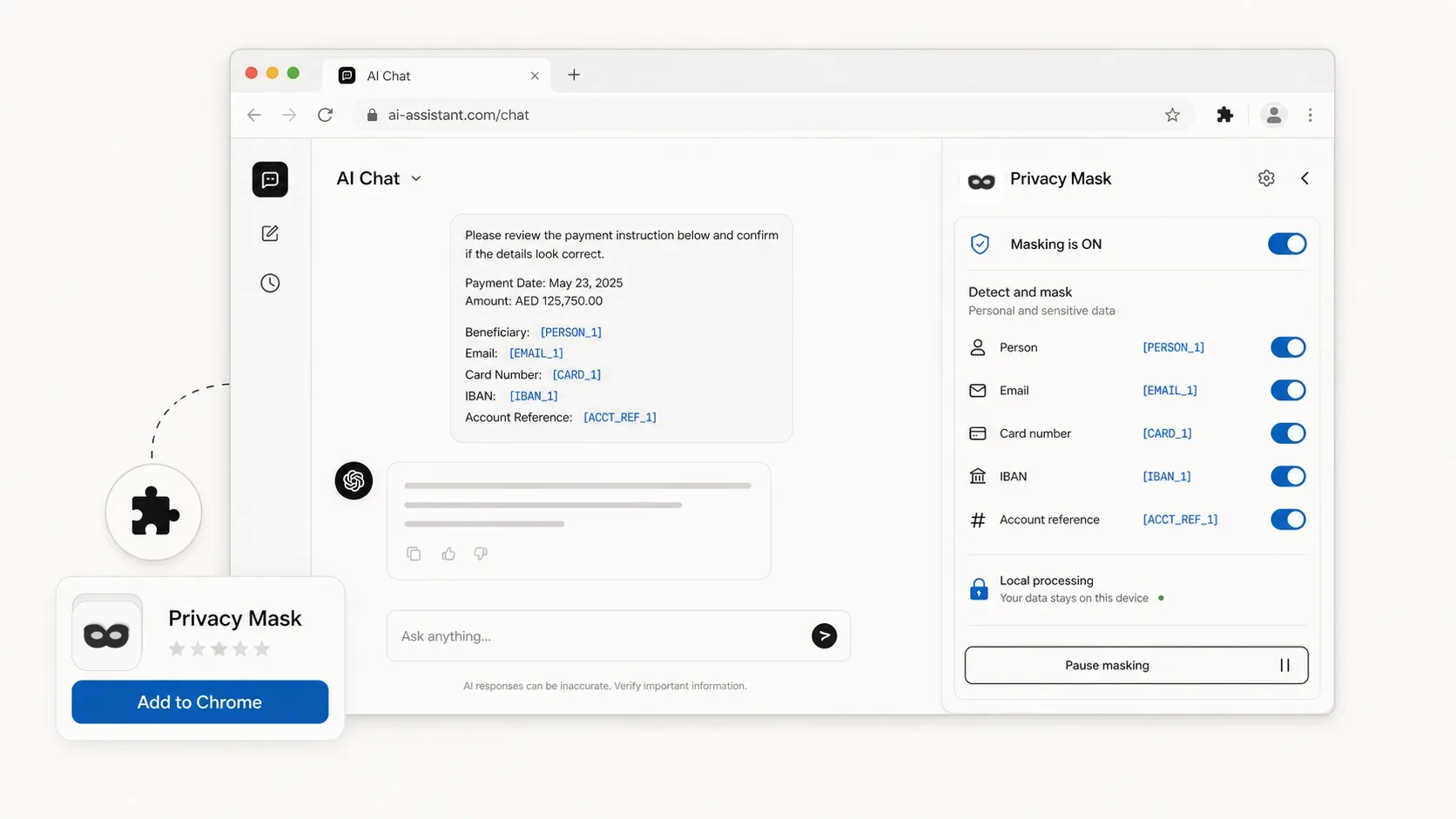
The extension is built for the office copy-paste moment: a customer email, support ticket, HR note, contract clause, PDF excerpt, or payment instruction that needs help from ChatGPT, Claude, Gemini, Grok, Copilot, DeepSeek, or Perplexity, but should not expose raw names, emails, IDs, cards, IBANs, or account references.
The walkthrough video shows the product loop in under a minute:
What launched
Privacy Mask opens as a side panel next to a supported AI chat page. The user brings in work text, the extension detects sensitive entities locally, and each entity type can be switched on or off before the masked prompt is copied into the chat.
Each detected value is replaced with a stable placeholder such as [PERSON_1], [EMAIL_1], [CARD_1], [IBAN_1], or [ACCT_REF_1]. Stable placeholders matter because the AI assistant can still follow the case without seeing the actual identity behind it.
The mapping between placeholders and original values stays in the browser. When the assistant's answer comes back with the same placeholders, the reveal step helps the user connect the reply back to the real case without pasting the original values into the chat.
What it handles
Privacy Mask is for short work text and copied excerpts, not whole document pipelines. The common launch use cases are simple:
| Work text | Masked before AI chat | Usually left visible |
|---|---|---|
| Customer email | Names, emails, phones, order references | Issue, tone, dates, amount |
| Support ticket | Customer identity, ticket IDs, account refs | Problem category, requested action |
| Payment note | Card, IBAN, beneficiary, account refs | Amount, date, currency, status |
| HR or legal note | Names, candidate emails, client names | Role, question, clause structure |
For the longer policy and provider-settings discussion, read how to mask PII before using AI chat at work. That guide covers what to mask, what to keep visible, and the mistakes that defeat masking.
How the workflow runs
The workflow image below shows the launch loop: install the extension, mask in the side panel, paste the placeholder-safe prompt, then reveal locally.
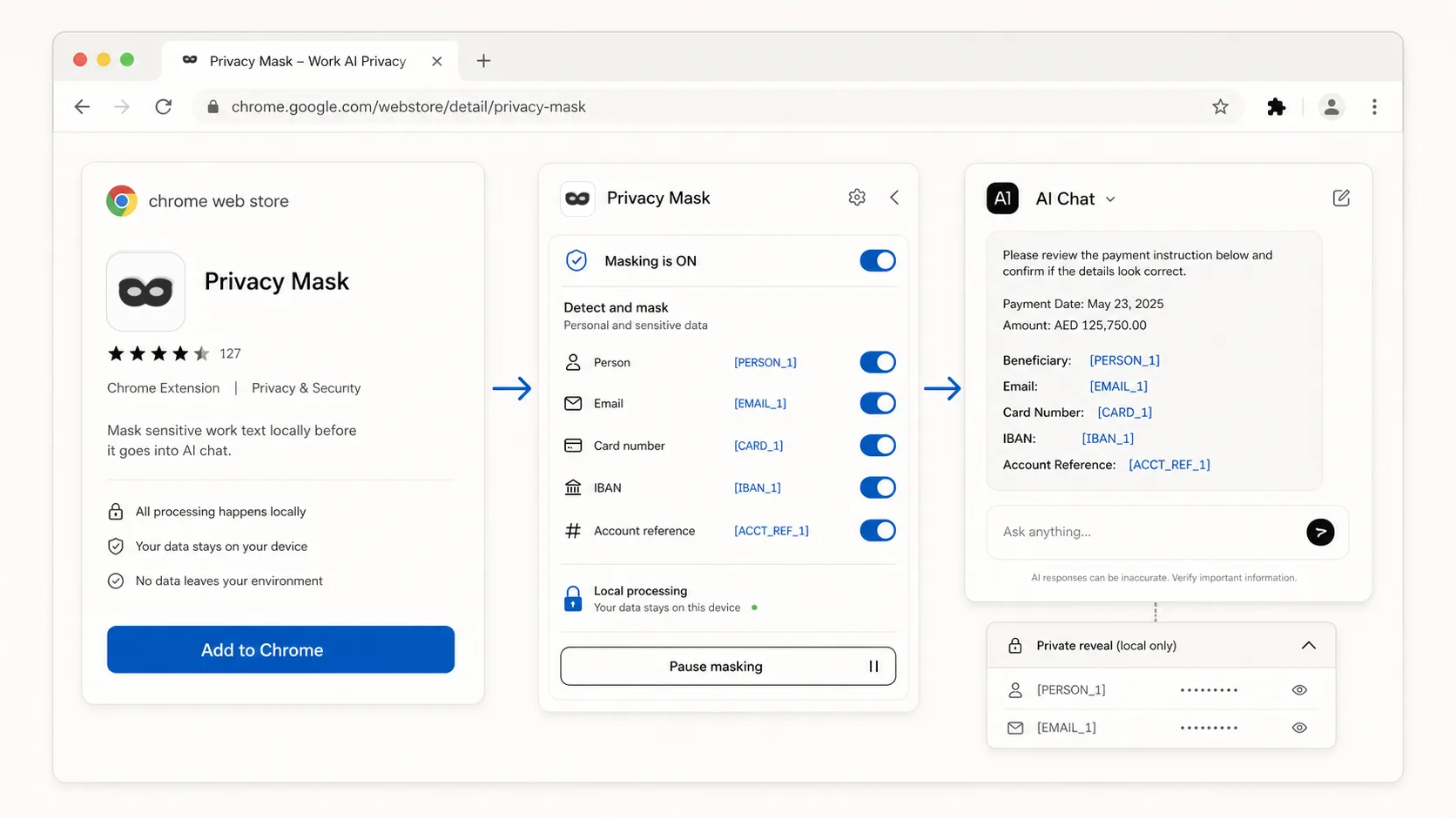
The extension follows five steps:
- Copy the work text: an email, a ticket, a note, or a document snippet.
- The extension detects sensitive entities locally in the browser.
- Review the mask, keeping the values the task needs, such as amounts and dates.
- Paste the masked prompt into the AI chat and work as usual.
- Reveal the mapping privately when the answer needs to be connected back to the real case.
The review step is deliberate. A project name can be public in one company and confidential in another, and no detector settles that question by itself. The extension does the mechanical work; the user makes the judgment call once, before anything is sent.
Who it is for
Privacy Mask is built for office teams that use AI chat around real customer, employee, vendor, or document context: support, customer success, HR, legal, compliance, finance, and operations. It fits regulated environments such as banking and legal work, where client data inside an external chat carries regulatory weight.
For an individual, it is a habit tool. For a company, it is the employee-side control that holds regardless of which AI provider and plan the organization standardizes on.
Availability and scope
The extension is live in the Chrome Web Store for Chrome and Chromium-based browsers. It is scoped to supported AI chat pages rather than every website. Feature details, supported assistants, and privacy notes are on the Privacy Mask app page.
The scope is deliberate. Privacy Mask handles ad hoc copy-paste moments; structured document work belongs to Document Anonymization, Paperwork's managed service. The split:
| Privacy Mask (extension) | Document Anonymization (service) | |
|---|---|---|
| Built for | Individual copy-paste prompts | Files, batches, API workflows |
| Runs | Locally in the browser | Managed gateway in front of the LLM |
| Enforcement | User habit plus a review step | Policy applied to every request |
| Audit trail | Local mapping only | Logged and reviewable |
| Re-identification | Reveal in the browser | Controlled re-identification rules |
A browser extension cannot replace review or company policy. It reduces accidental sharing by giving the user a local masking step at the exact point where sharing happens.
Part of the Paperwork platform
Paperwork builds document processing for financial services, including bank statement analysis and document fraud detection. Privacy Mask applies the same principle to the everyday AI prompt: extract the useful signal, expose as little sensitive data as the task allows.
Install the extension from the Chrome Web Store and try it on the next work prompt.
FAQ
How do I install Privacy Mask?
Open the Privacy Mask listing in the Chrome Web Store, select Add to Chrome, and open the side panel on a supported AI chat page. The extension runs in Chrome and Chromium-based browsers.
Does the masking run locally?
Yes. The extension is designed to detect and mask sensitive information locally in the browser before the user sends text to an AI assistant.
Which AI assistants does it support?
ChatGPT, Claude, Gemini, Grok, Copilot, DeepSeek, and Perplexity. The extension is scoped to supported AI chat pages rather than every website.
Is Privacy Mask the same as Document Anonymization?
No. Privacy Mask is a browser extension for individual prompts. Document Anonymization is a managed service for files, APIs, audit trails, and team-wide enforcement.
If you want to learn more, you can try the demo or read our tool documentation.